
3/25/2024
How to Use Pink Canvas AI Generate for Custom Wallpapers
Prompt-writing tips, style controls, and workflow ideas for creating bespoke pink wallpapers with AI Generate.
Start with a real moodboard
Before generating anything, gather three to five screenshots of pink imagery that represents your goal. Maybe it is a rosy chrome heart, a cotton-candy skyline, or a blush marble countertop. Having those reference visuals nearby keeps your prompts grounded and stops you from defaulting to vague descriptions. Drop those keywords into a quick note right next to AI Studio. When you see words like satin glow or sparkling mist written out, it is easier to describe the texture you want rather than just the subject. We even paste a link to our favorite Pink Dreamy Garden wallpaper when we want the AI to honor that botanical softness.
Write prompts with structure
Structure your prompt with four parts: subject, materials, lighting, and composition. An example might read, cinematic pink castle, rose quartz bricks, shimmering aurora lighting, centered palace with wide river foreground. The clarity gives the model mini instructions for every piece of the scene. Then add mood terms like dreamy kawaii, luxe editorial, or neon cyberpunk, and specify the device preset or resolution. When you write desktop 16:9, ultra-detailed 4K wallpaper, the AI Generate queue delivers frames that already match your display, reducing rework.
Dial in style controls and devices
Use the device selector before you submit the prompt so the render respects your canvas. Mobile crops will keep subjects vertical, while Desktop spreads elements across the horizontal axis. Pair those choices with the style toggles such as Dreamy, Metallic, or Illustrative to nudge the base aesthetic without rewriting your prompt. If you stumble across a combo that looks stunning, duplicate the prompt in your notes and add the style setting you used. It becomes a recipe you can revisit whenever you need, much like a brand style guide.
Iterate quickly and keep good notes
Generation happens in runs, so use the task tracker to monitor progress. When the status badge says rendering, resist the urge to refresh; the page will update automatically, and the thumbnail pulses so you know it is active. Once you see results, rate them mentally: keep, tweak, or discard. Jot quick notes like needs more chrome or add butterflies so your next prompt improves instead of starting from scratch. The discipline makes every run smarter.
Export, share, and remix in Edit
Click the download button under each result to save the preset instantly. The filename includes the task ID, making it easy to trace back to the original prompt if a client asks where an idea started. If you want to keep the composition but tweak details, send the image directly to AI Edit from the studio panel. You can add textural overlays, color shifts, or glowing accents without rebuilding the entire scene, giving you polished pink wallpapers in record time.
Recommended pink wallpapers
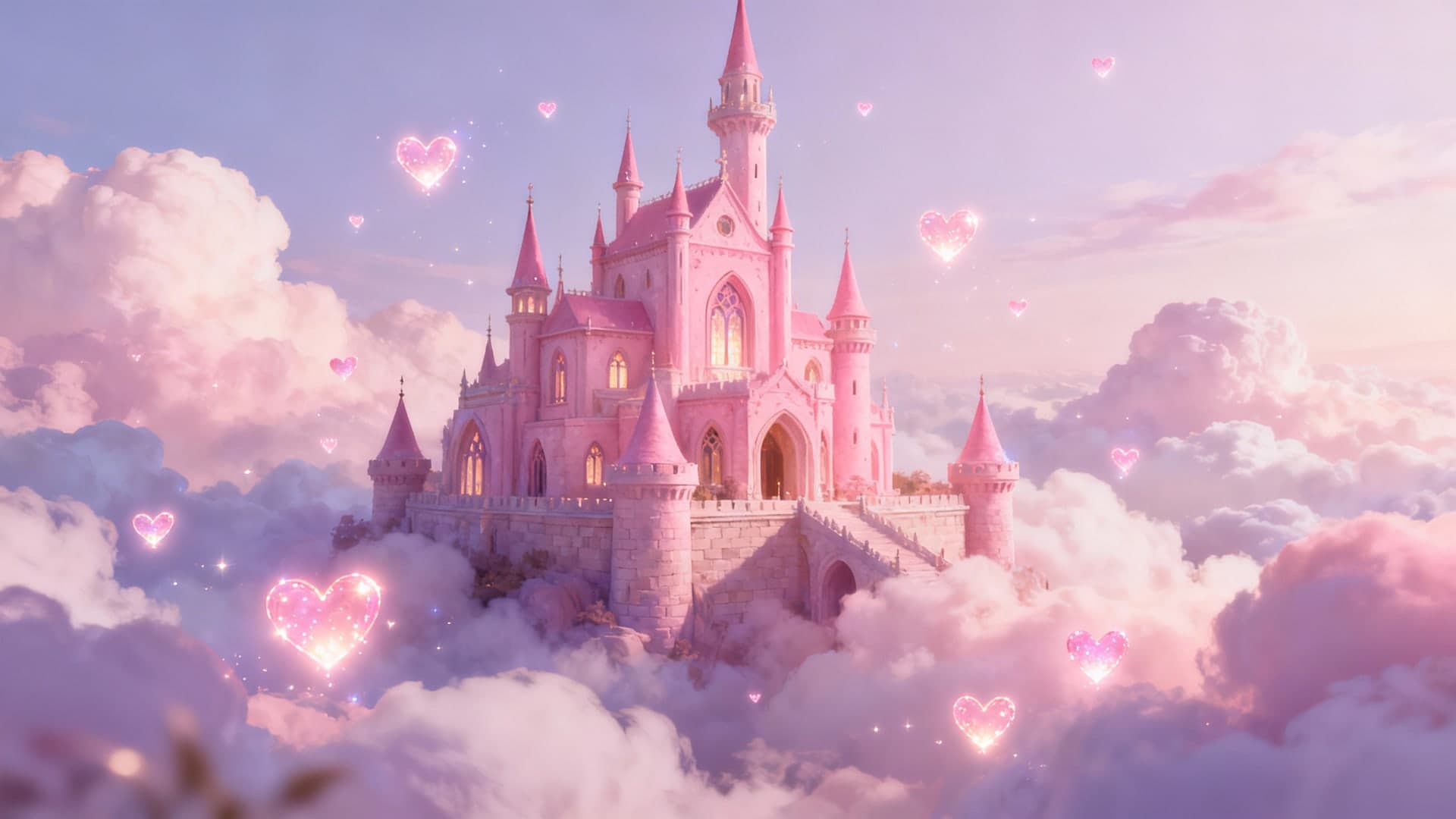
Pink Fantasy Castle
A great reference when you want the AI to learn cinematic structures and shimmering fog.
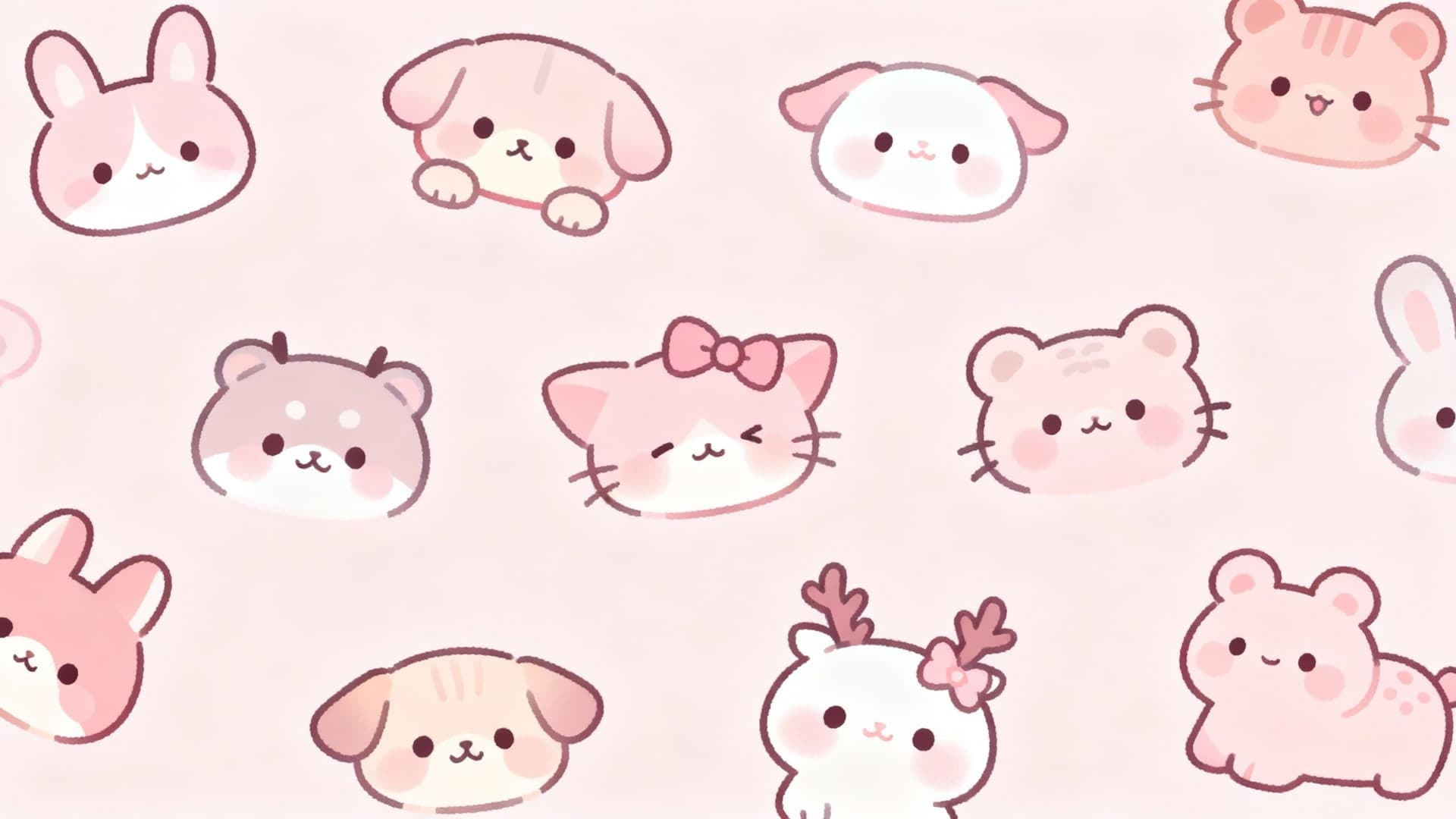
Pink Kawaii Animals
Use this lively scene as a style reference when prompting for character-focused renders.
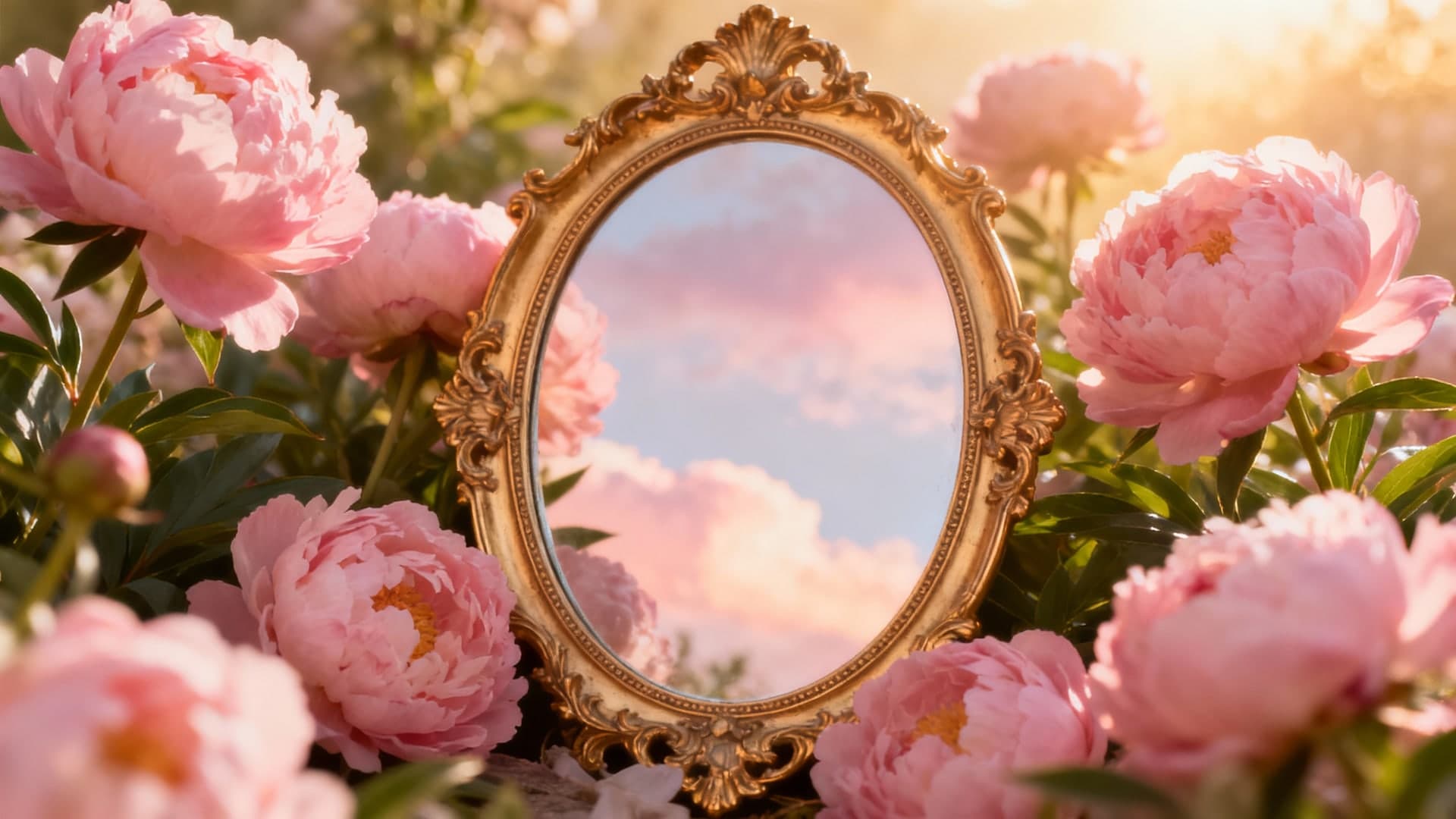
Pink Dreamy Garden
Soft florals with depth-of-field cues that help the AI understand botanical blur.